Category Archives: General Use
The Birthplace of Peaks… Peak Detection Parameters
So after all is said and done, in the routine world, data really relies on the basic two dimensions.
Time and Response.
To put it all together we need to setup a way to detect what is really meaningful out of a line of connected dots using these two dimensions.
There are a plethora of detections alogrithms out there. We at Thermo typically use Two (ICIS and Genesis), sometimes a third. As in anything we need a starting place.
In TF we give you the ability to set up what you want your Default detector to be.
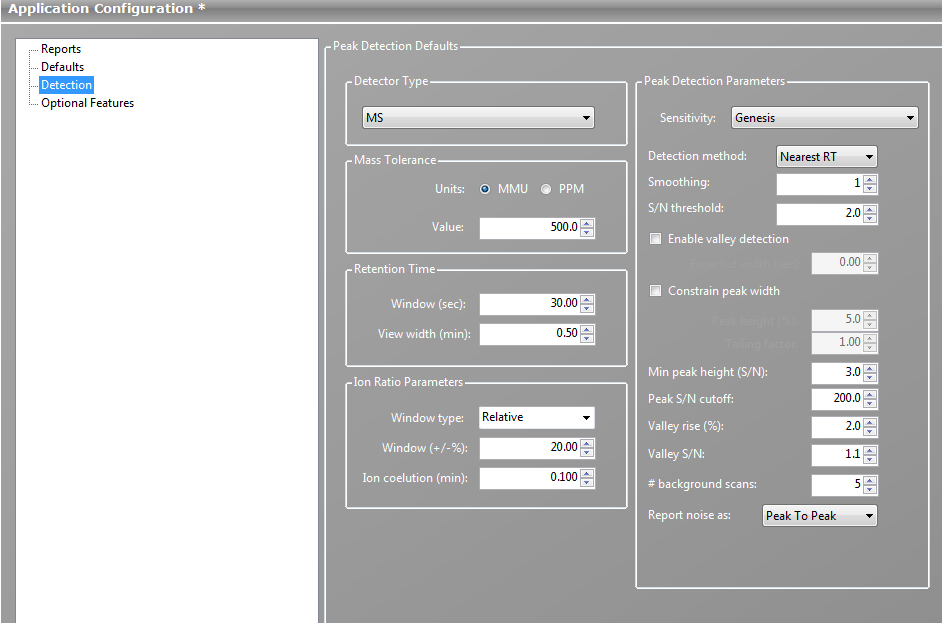
This also gives you the option to set the default conditions. Hint: I gave you my preferred default settings in an earlier post.
You use these settings when you make a new compound/peak in a method.
But you can also set up default conditions for you’re other alogrithms. So, if you find the need to change one that has already been assigned to a peak, you’ll have your preferred setting right off the bat.
So this is one place where you can defind your freedom of choice.
Dude…Where’s my .sld file?
If you are using the development batch to work up your methods. Then you know you can open up QUALBROWSER from the Development Batch Section.
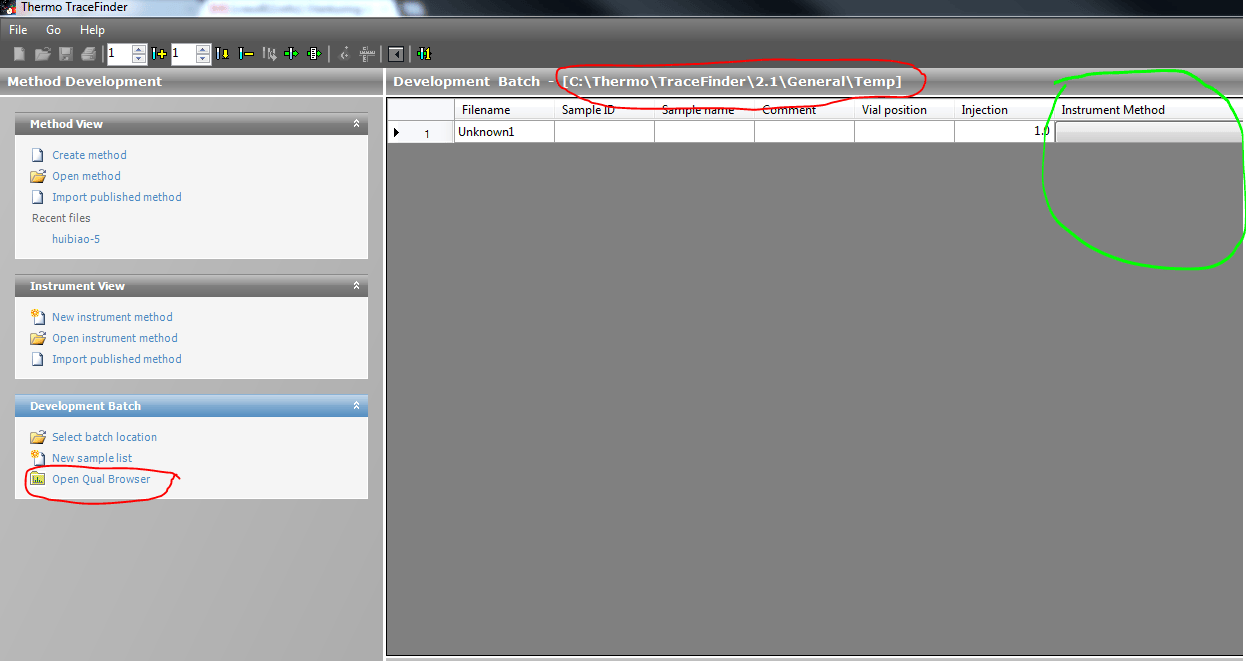
So in addition to being able to select a different instrument method for each row, from the Xcalibur methods folder.
A .sld file is generated for the contents of the batch.
These are stored in the directory you selected for the batch. Highlighted in Red.
So you can point Qualbrowser’s open sld file menu option here, so you can open and navigate the rawfiles in the batch.
And this same .sld file can be used again and again to produce different batches in Development Batch.
Hmmm… License, Do I Really Need One??? YES
TraceFinder Installation Instruction, including license registration process
In the link above you can find the installation instructions, plus a process that tells you how to register your copy of TF.
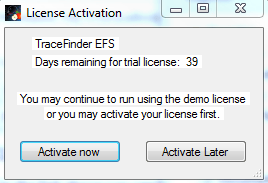
So if you see the above notice, you have that amount of time to register the product.
After this runs out you will not be able to open TF.
It will only open to the registration page until a license is obtained.
Just enter in the your info and email the text, “Blob” ,to the address listed at the top.
This occurs whether you have a demo or full version.
This is also the only way to extend the demo version by a specified amount of time, which is handled on a case by case basis.
If you are a Thermo Employee. Please register your version and as long as we are sending this to a Thermo email address, then YOU, will receive a full license.
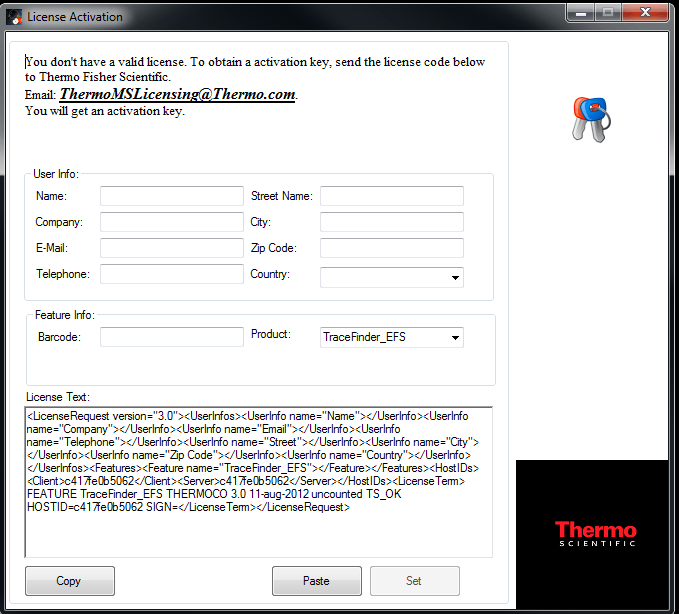
BIG HINT: The license is good for one PC. It is Mapped to the motherboard’s MAC address.
So it is not transferable between systems.
Each purchase gives the user the right to install on two PC’s TYPICALLY, the instrument PC and an offline processing station.
Pause or Stop … That is the question
In TraceFinder there are a couple Queue List to consider.
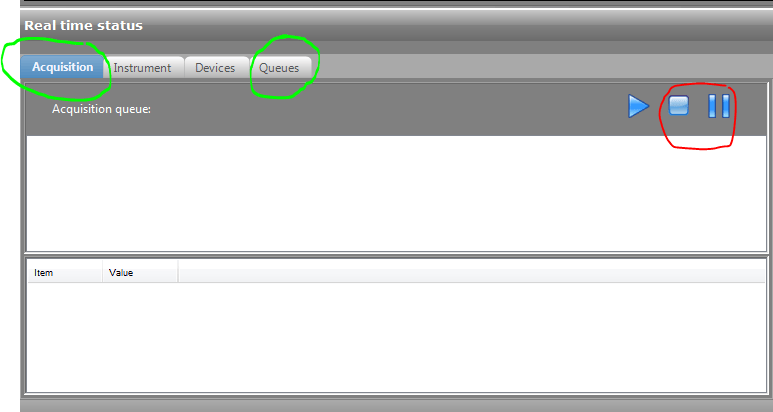
So First there is the Acqusition Queue. This is a list of samples being acquired by instruments that TF controls.
The Second, simply named Queues is a list of processes that are occurring with sample data. This includes acqusition(is the sample done being created), Processing (is the data I want being extracted) and Reporting (are my reports being generated)
All these can be paused or stopped.
Pausing simply hold the allows the current process on the curtrent sample to finish and then it waits.
Stopping kills the process, whatever that may be. Acquiring data or reporting, etc…
Once this is done then you can remove or restart the things that were previously QUEUED up.
All instruments of all vendor with all software applications have issues with batching and removing batching of sample in some form. No matter what you might use in the lab its always a best practice to let instruments go home before giving them new instructions.
Another word to the wise: If you are acquiring data Pause the queue and then remove samples from the Acquisition Queue. Let all the instruments finish their processes of rehoming themselves, in the case of the autosampler, or finish the gradient flow in case of the LC pump. This will allow for the system to be in a good known state when you remove samples fromthe queue. Otherwise the messages to the instruments might get cross with each other.
Houston We Have A Problem… Communicating How Issues Occur
Many times, messages come through asking for help that say, ” I have an error.” The problem is, to fix something we need to reproduce the error or see what the error says.
If you get an Unhandled Excection error, Windows is telling you the application is in a bad state. Here basically you have two choices. Close the application “Do this, Please” or Continue, not recommended because the system will be running in an unknown state.
Before, you do either of these, please click on the details button. This will open up a text dialog below the error message, which contains valuable information on what files internally or externally to the application are being effected by the error. Please copy this text and email it or post it someplace where the person rendering you assistance can get to it.
Also, a good tool to use if the problem is reproducable, is a Free tool in Windows called the Problem Step Recorder.
See the Link Below for how to use the Problem Step Recorder.
http://windows.microsoft.com/en-US/windows7/How-do-I-use-Problem-Steps-Recorder
And there is always the Windows 7 Snippet tool for capturing images off your screen and saves them in picture format.
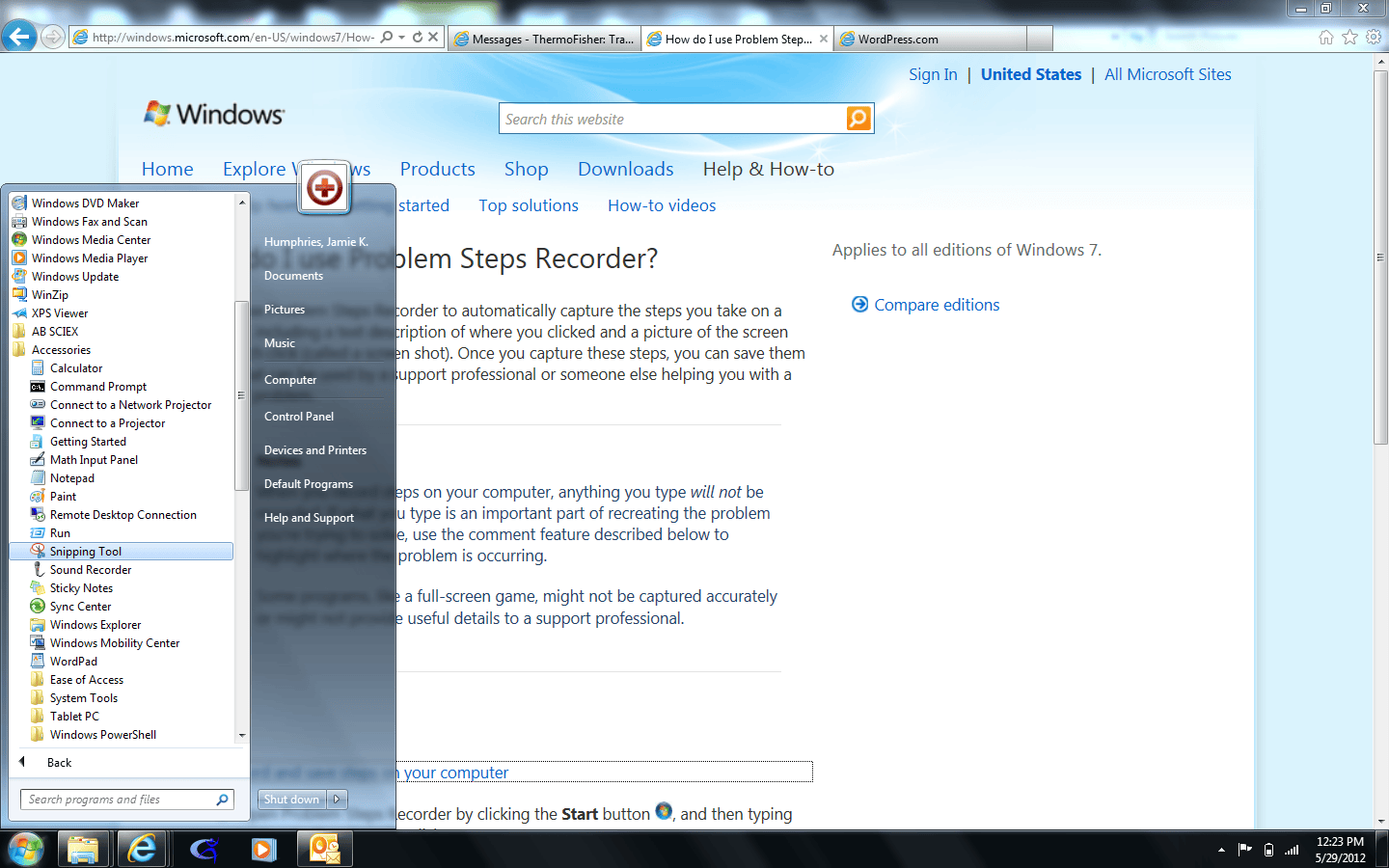
So help us help you, by using these tools to get us info to pinpoint your issue as rapidly as possible.
Fight the Good Fight.
If you want you Reports to fly off the printer, Give them WINGS!
Why don’t my reports print on the fly?
Well, one reason could be the printer is out of paper.
Most likely,the reason is that your reports aren’t configured.
So, in the batch template make sure you select any reports and the type you want to be produced.
If you selected reports in the master method then they should be marked accordingly here.
If you didn’t then this is your opportunity to fix that step.
REMEMBER: Just because you selected reports in either of these places doesn’t mean reports will be created on the fly. When you submit the batch there is a checkbox that says “Reporting”. This must be checked to have reports automatically be produced.
So, the feathers are the selected reports and the lift is the checkbox. Have both, you’re an Eagle.
If you don’t, your Icarus.
Designated Driver?????
One of the issues that many new users have is making sure all the different pieces of software are compatible with each other.
TraceFinder installers guarantee the system has the right Foundation, Xcalibur and TF versions.
In the release notes on the installation disks, we list the appropriate instrument drivers for that particular TraceFinder release version.
An example of this would be an incompatible mass spec driver, with all the other pieces being correctly paired. The instruments may not respond,or the instrument editor may not open because it can not detect the instrument.
So a word to the wise always make sure that if you’re taking TraceFinder out for a spin, you bring along the designated driver.
Peak Integration Algorithms… Hmmmm Which one to use?
This is a question that comes up almost daily. So from the perspective of someone who has been using many flavors of mass spec software, none of the choices of any vendor is exactly ideal.
Here in Thermo our two most commonly used detection models are Genesis and ISIS.
Now somewhere in time, the naming convention got lost and it’s hard to know which one to use in the right situation.
So here’s 10 years of experience in using these, in many forms of data.
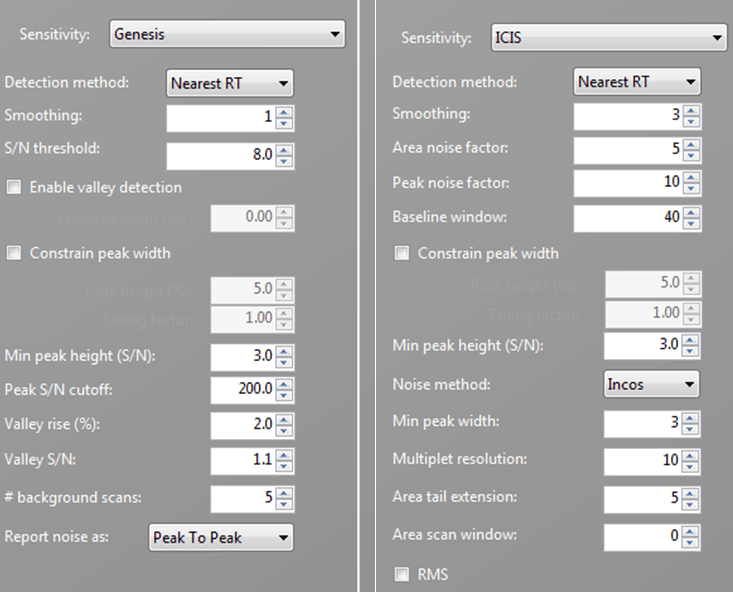
Genesis is good for detection of peaks in a noisy baseline. Typically in full scan types of data collection. So Single Quads, Ion Traps, FID and PDA data sets.
I use these points typically as a good set of default values: Nearest RT, Smoothing of 3, and signal to noise threshold of 5. The rest of the values can be used for fine tuning but these are my basic starting points.
ISIS is good for more abstracted data with cleaner baselines. Typically SRM, SIM and CRM scan types of data collection. So Triples Quads, MS3 systems, and Exactive instruments.
Here I typically use a set of values of Smoothing 3, Area Noise factor 5 Peak noise 10 Baseline window 40-80(just depends on how noisy it is)
MINIMUM PEAK WIDTH – This really comes into play when dealing with different types of chromatography. Narrow peaks I use 3-5 (scans) as my minimum. So GC and UHPLC types of data. For LC/LCMS I use typically 20( scans), because these chromatographic peaks are wider and usually noise peaks are much narrower.
Again this is a rule of thumb and a starting point.
Happy Quan.
Processing Across A Network
TraceFinder can store batches on a remote mapped drive on a companies network.
One issue that may arise is latency/slowness of the network itself. Remeber the processing occurs on the local PC, so files and results have to read and written to disk by passing through the network.
If the storage disk is very far away or the network has heavy traffic, processing will slow down.
A remendy of this is to locate the storage server within the building of the laboratory or have a dedicated line.
Also TraceFinder 2.0 and above can be installed in a Cloud configuration where the processing and storage are on a remote server, with multiple instances capable of being hosted. This allows the user to see via a browser the application and process and review results without the latency issue.
Sluggish PC response on Windows 7 installations
Running on systems with Windows 7 and Office 2010 have had some issues with sluggish response over time with TraceFinder and Xcalibur.
There seems to be an issue with memory leakage that is addressed in current Windows and Office updates. Especially surrounding the Excel 2010 installation.
The solution has been to update Windows 7 to the latest update/hotfixs and to update MS Office with its latest updates or Excel if the is the only office component available.
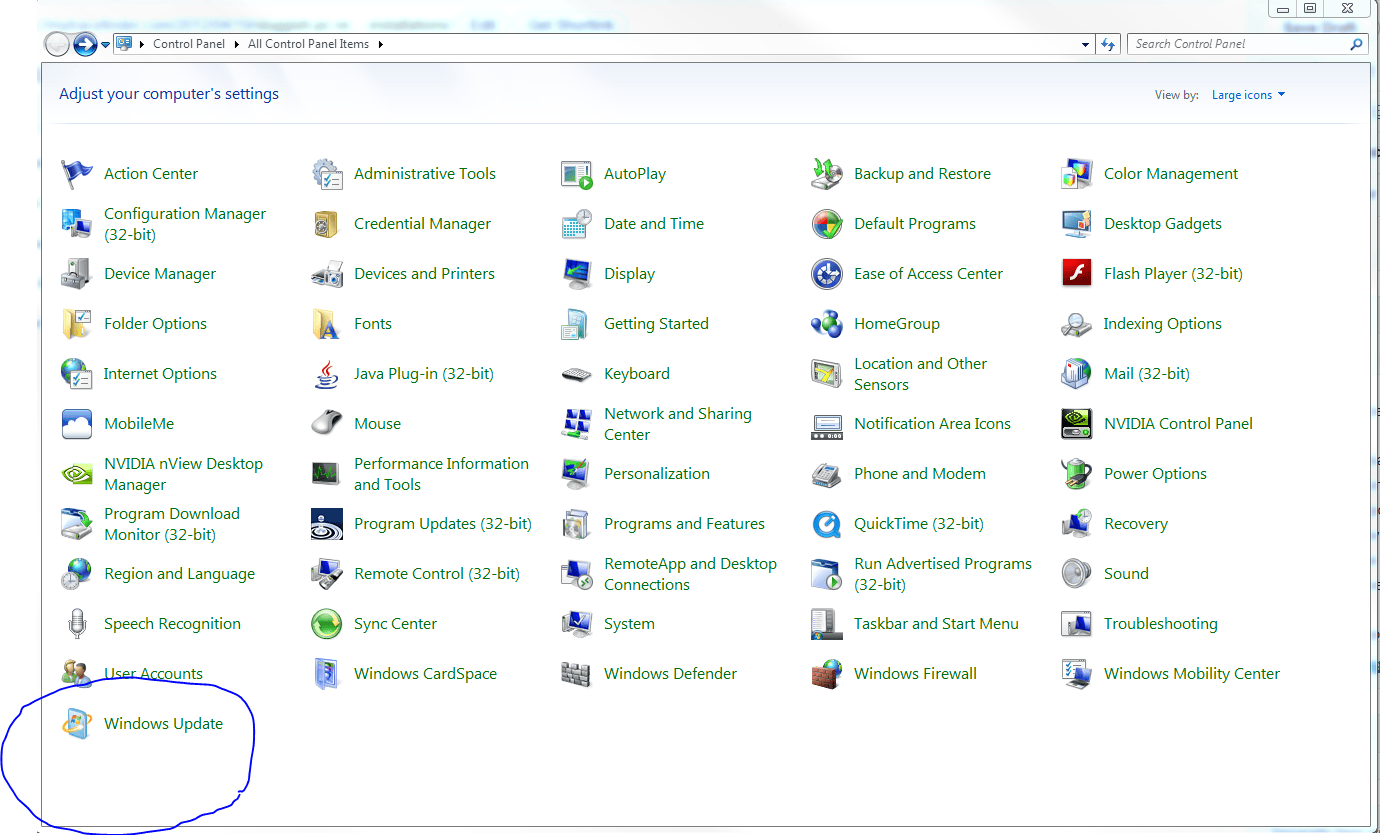
Easiest way to do this is connect to the internet and choose update Windows from the Windows Update icon in the Control panel.
The updates for each can be downloaded from the Microsoft.com/Downloads section of the Microsoft website.
Windows Update From Control Panel
Office Update From Excel Help

