Category Archives: Acquisition
Multiplexing… The old and the new.
TF can be used with Aria MX and AriaOS.
Linked below is a guide on how to work with Aria OS and TraceFinder.
This allows the user to make use of his Aria OS system that has been certified for chemical analysis, but would want to take advantage of the superior TF quantitative properties. This relies on the fact that analysis is performed in a batch processing manner.
Sample List???…. Do I need a Sample List??? Yes and here’s how to import one
So the basic element of data navigation and collection is a list of samples.
This list will identify the properties of the data collected and tell the system, what to do to and the names of the files collected or to be collected.
So TF has a couple of different ways to do this.
The first and easiest is to make a template of the defined sample grid you want to use. In TraceFinder, the user can define the columns that are displayed in both the data results and sample definition grids.
In Batch View or in the sample page of the Acquisition Mode/Wizard, right click the mouse in the grid and a menu dialog that opens up.
In that dialog , select “Export to CSV”. This will make a copy of the grid and the header lables is a file that can be opened by any editing grid application. The most common is Excel, but you could open in a text editor also.
Simply, open the file and for daily use just input sample information in the template and save as a daily/batch .csv file.
A LIMS system, can create a .csv file in this same format or even use a bar code reader to fill in certain fields even in Excel.
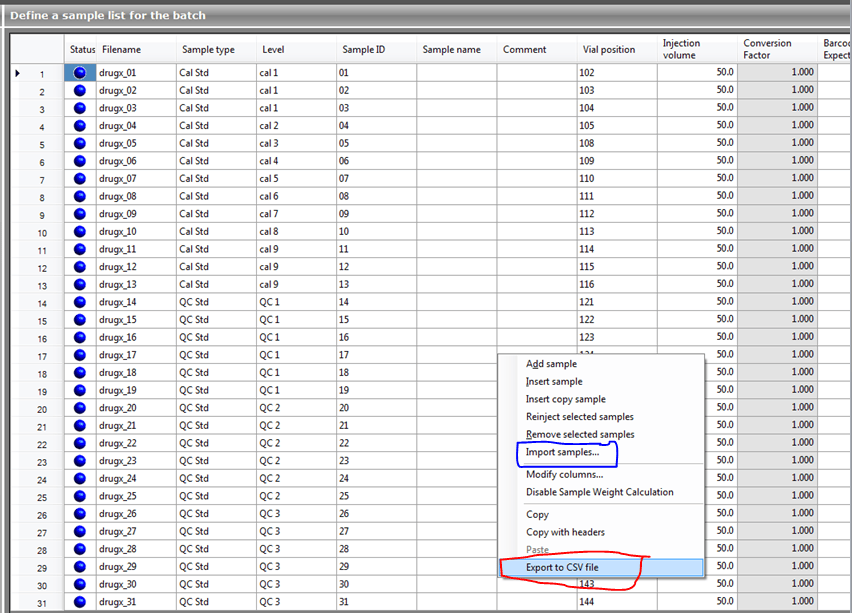
Once the sample input is done save the file as .csv and close the editor.
If the file is still open in Excel, MS Office will not let it be used by another program so TF can’t import it until it’s closed.
Right click in the grid and select “Import Samples”.
The Dialog below opens, then select the appropriate file.
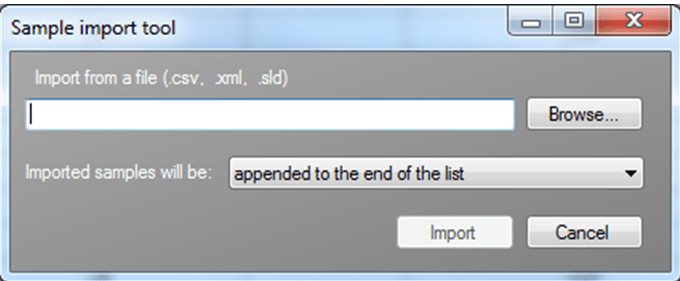
The information contained in the CSV file will be inserted into the grid either at the end of the current data or where the index indicator is if that is the option selected in the drop down list below the browse section.
There is also a xml format that can be created fromat LIMS system that can be used, or if Xcalibur has previously been in use the .sld files can be utilized also. Any sample type that TF does not recognize will be set to the Unknown Sample type.
Two ways in but no way out…… Xcalibur and TF open at the same time
HMMMMM…. Why am I golden but not green.. on my status ball.
All computer systems in the world, from a Operating System to specific applications like TraceFinder have a file managing system. Typically called an I/O or File I/O, for In and Out. This manages the handling of a file and the opening and closing of a file to extract data or other things inside the file.
Inherently TF and Xcalibur being from the same family of applications, act like siblings and try to grab the same file if they are both open at the same time.
If this happens then sometimes the door handle flies off and someone gets stuck inside.
When this occurs then rawfile will apprear as yellow status meaning it is acquired but not processed.
To fix this you just have to make sure xcalibur is shut down. and then proces the file. If for some reason that doesn’t work then you may have to reboot the PC. Not the best of situations, to say the least.
So Word To The Wise. Only use one Application at a time when Acquiring Data.
Dude…Where’s my .sld file?
If you are using the development batch to work up your methods. Then you know you can open up QUALBROWSER from the Development Batch Section.
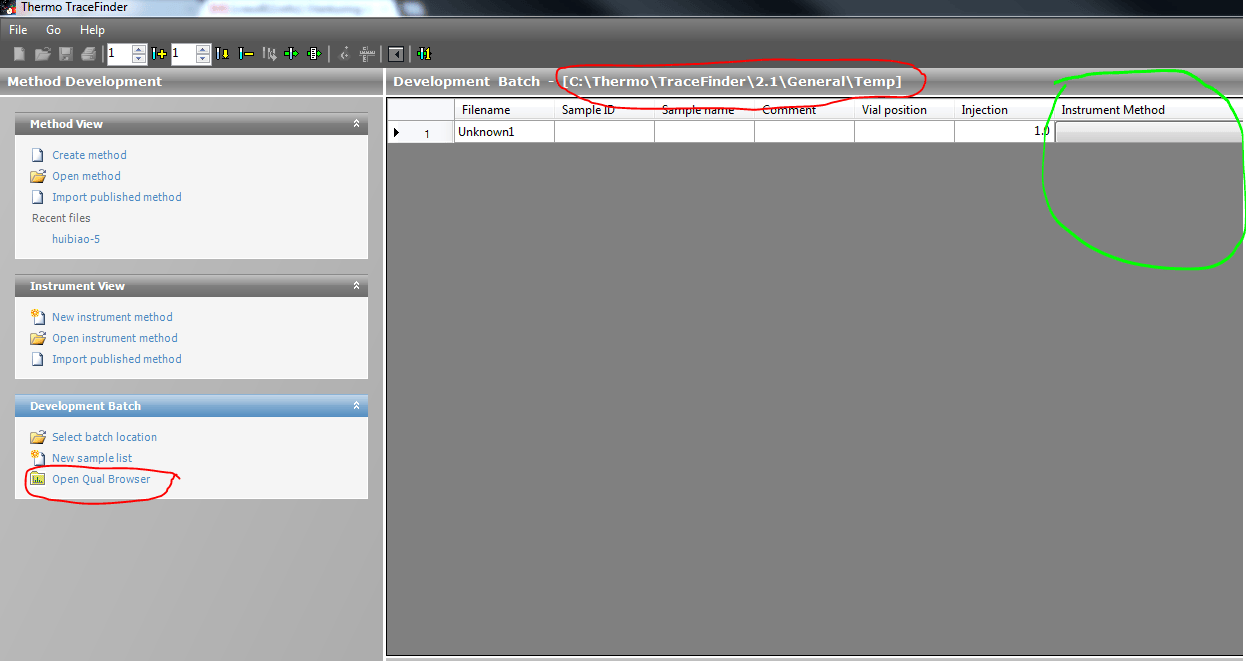
So in addition to being able to select a different instrument method for each row, from the Xcalibur methods folder.
A .sld file is generated for the contents of the batch.
These are stored in the directory you selected for the batch. Highlighted in Red.
So you can point Qualbrowser’s open sld file menu option here, so you can open and navigate the rawfiles in the batch.
And this same .sld file can be used again and again to produce different batches in Development Batch.
Pause or Stop … That is the question
In TraceFinder there are a couple Queue List to consider.
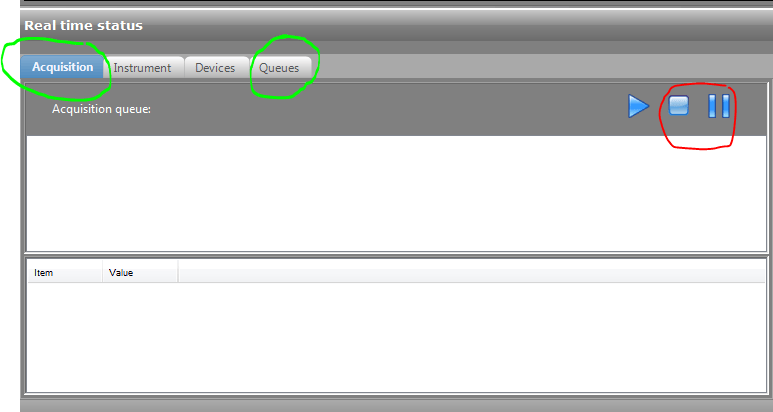
So First there is the Acqusition Queue. This is a list of samples being acquired by instruments that TF controls.
The Second, simply named Queues is a list of processes that are occurring with sample data. This includes acqusition(is the sample done being created), Processing (is the data I want being extracted) and Reporting (are my reports being generated)
All these can be paused or stopped.
Pausing simply hold the allows the current process on the curtrent sample to finish and then it waits.
Stopping kills the process, whatever that may be. Acquiring data or reporting, etc…
Once this is done then you can remove or restart the things that were previously QUEUED up.
All instruments of all vendor with all software applications have issues with batching and removing batching of sample in some form. No matter what you might use in the lab its always a best practice to let instruments go home before giving them new instructions.
Another word to the wise: If you are acquiring data Pause the queue and then remove samples from the Acquisition Queue. Let all the instruments finish their processes of rehoming themselves, in the case of the autosampler, or finish the gradient flow in case of the LC pump. This will allow for the system to be in a good known state when you remove samples fromthe queue. Otherwise the messages to the instruments might get cross with each other.
Multiplexing methods: Bigger is definitely not better.
So if you’re getting an error that in the instrument log that says. Something like, “data file closed before the instrument was finished.”
And you’re using an Aria multiplexing front end.
Then most likely the mass spec portion of your method file has an acquire time larger than the data window in the Aria portion of your method.
This could cause the raw files to remain open and use up RAM depending on your batch size you could run out of memory depending on what version you are using.
RULE OF THUMB: The mass spec acquisition time must be EQUAL TO OR LESS THAN, the Duration time in the Aria method. So if the duration time is 3.0 minutes then make your mass spec time 2.99.
So, you can definitely do more with less.
