Author Archives: humphrjk
Use FreeStyle to Create NIST 2014 Spectral Library Entries
TraceFinder 3.3 utilizes both the Thermo Library Manager and NIST 2014 HRAM library search system for confirmation and identification of found chromatographic peaks. To support the creation of HRAM libraries with NIST 2014 there are a few things to setup.
First, acquire NIST 2014 from a NIST distributor. Thermo has the rights to distribute via purchase this application. Also, FreeStyle 1.1SP1 will be needed.
Once installed there you must set up the spectra import default settings to match the decimal place criteria you plan on using for the type of data contained in your RAW file.

Next you must have Thermo FreeStyle 1.1SP1 installed.
Then you must set up two settings for data export to NIST.
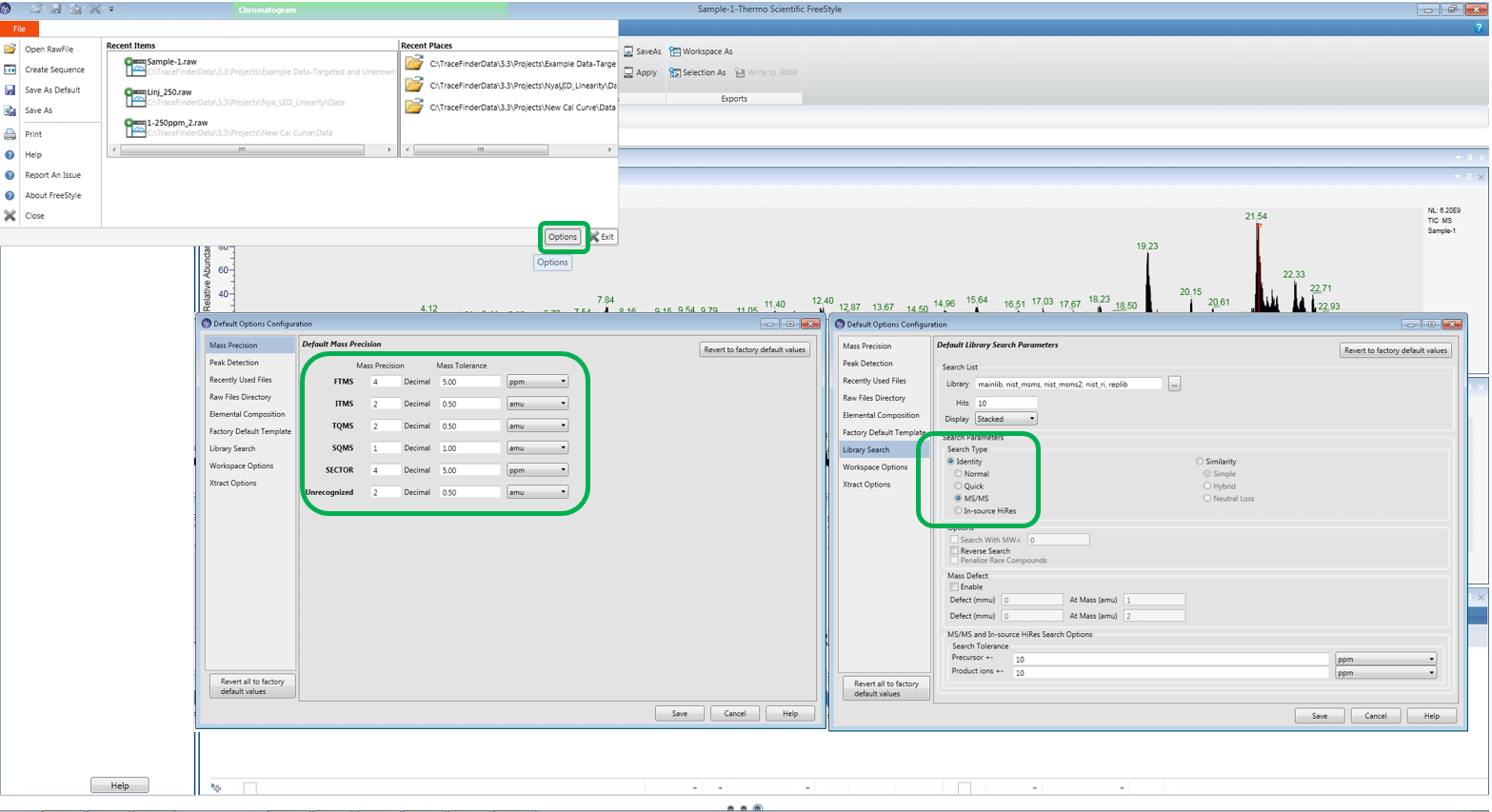
Under the File menu, select File there is an OPTIONS button to click on. Then select Mass Precision and set the number of decimal places for the data type you will be using.
Next select the Library Search option and set the default to be MSMS or In-Source.
Save the settings. (Note: in some instances FreeStyle must be restarted for the settings to be implemented)
The next step in the process is to open the data file(s) you want to use to create library entries. Select the Workspace Processing selector and click the Library Manager button. Select the Library you want perform an initial search against. This must be done even if you are creating your own library.

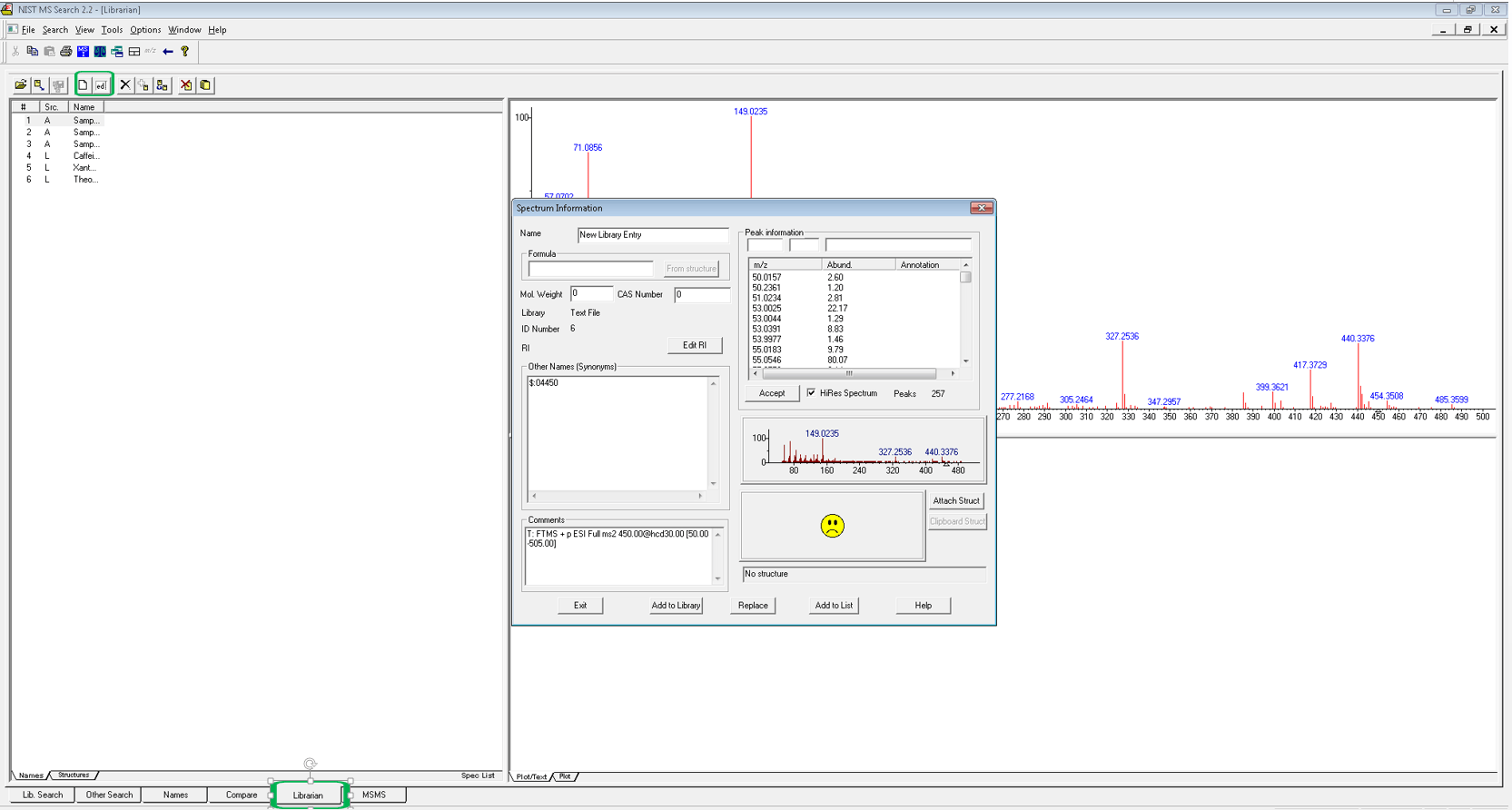
This is followed by working up your data to reflect the spectra you wish to utilize and then clicking the Export to NIST button, while the spectra panel is highlighted. The NIST search panel will open and display an initial search result.

Next select the Librarian tab on the bottom of the screen and select edit button in the middle toolbar to open the editing panel; make adjustments such as changing the name of the spectra to be entered. Then select the Add to Library button finalize with the library file selection.
Retention Time Reference Compounds Used For Correcting Chromtographic Drift
TraceFinder has an option to allow the user to set a reference compound to assist in corrections of retention time drift.
The feature is the same implementation that has been a part of the Xcalibur feature set for over 20 years and is well characterized. The user simply selects a checkbox in the RT Reference compound column of the Method – Identification tab. This sets the compound for use in linking other compounds to its found RT.
To set a compound to use a RT reference compound, simply select a RT Reference from a dropdown selector in the same definition grid.
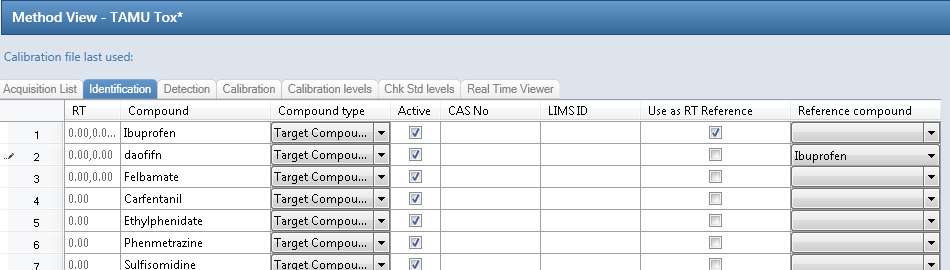
The typical use of this feature is to set your Internal Standards as RT Reference Compounds and then link the nearby eluting components to the Reference Compound. Also, the IS retention time peak detection window is set a little larger than the target components to allow for detection if a large RT drift occurs.
When the RT reference is detected the difference, whether + or – in time are adjusted in the connected compounds. This new RT is specific to each compound in each sample. Therefore it is not reflected as a change in the method because the method is set as a batch level setting. The compound using the RT reference must have an original expected retention time to be adjusted, it cannot be left as zero for this feature to work.
How to use the Threshold Sample in Comparative View
To utilize comparative view to its fullest, one must set 3 three properties.
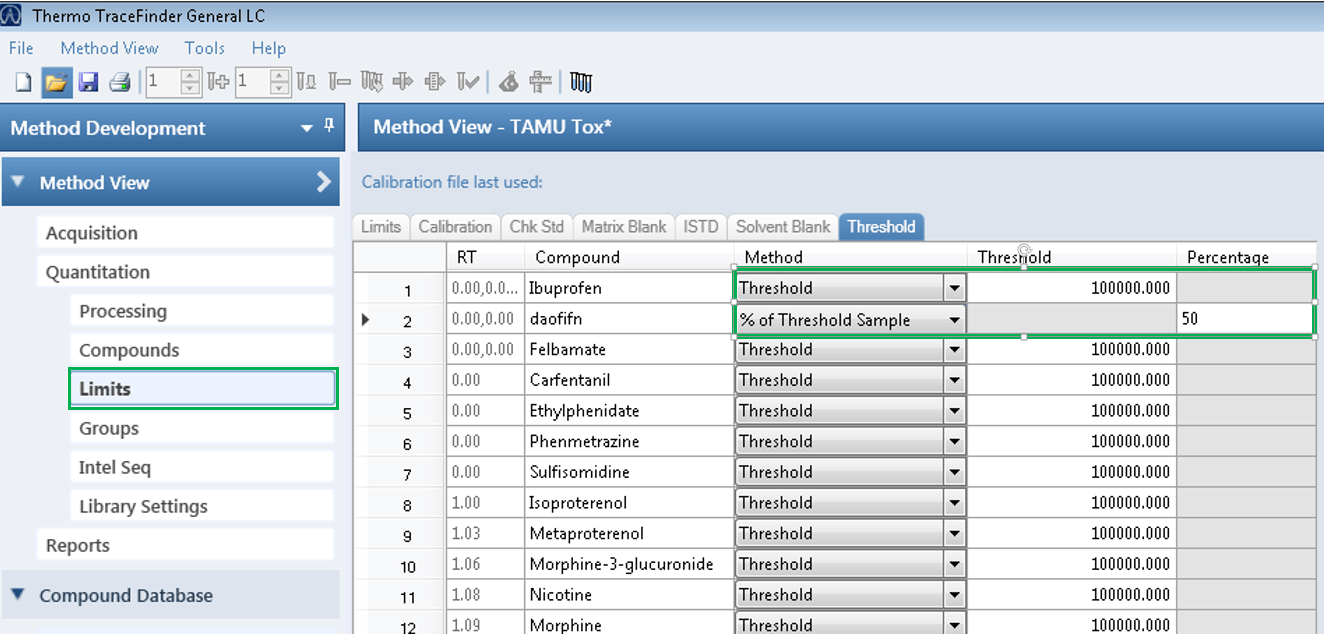
- Method-Limits-Threshold setting – this setting allows the user to set the height of the horizontal threshold bar in data review. There are two settings.
- Threshold – a fixed peak height amount
- % of Threshold the Sample – dynamic threshold according the peak height of the specified Threshold sample, as described below.
- Batch view-samples-groups column – this setting assigns samples to groups that are displayed horizontally in the comparative view peaks panel. A unique alpha numeric symbol is used to assign a sample to a group. Each sample with the same symbol is a member of that group. The samples are shown side by side in the peak review panel and are ordered left to right by descending order in the sample grid above.
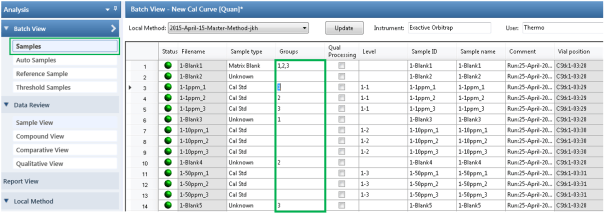
- Batch view-threshold samples – the setting allows the user to assign a threshold sample for each group. Any member of the group can be set as the threshold sample. However, only one sample can be utilized at a time in the group. If you want one particular sample to be used as the threshold across the batch make sure it is a member of all the group. For example if you used numbers for the group name and you have 10 groups, the entry for this sample in the groups column would be 1,2,3,4,5,6,7,8,9,10.
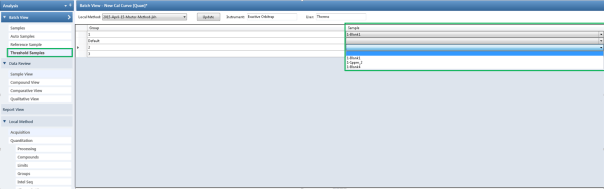
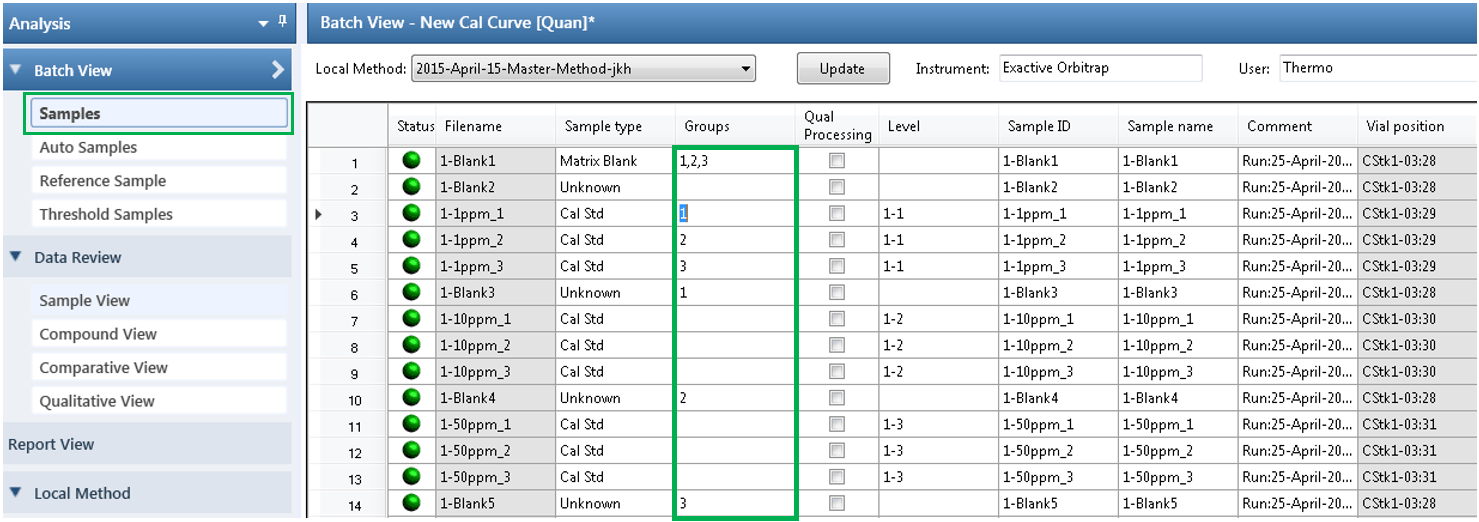
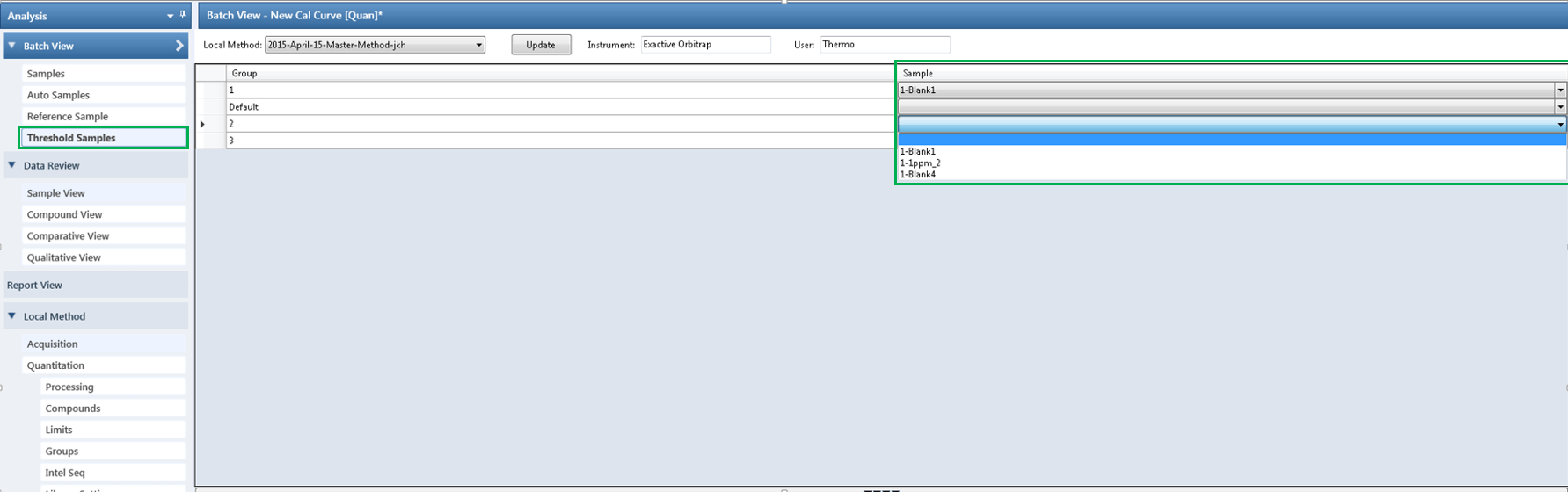
The settings in the examples above allow for the display shown below.
The tall red vertical bar marks the expected retention time and the smaller vertical bars are the edges of the retention time window. Both set in the method parameters for each compound. This allows you to see the drift of chromatography within the sample group. The horizontal red line is the threshold as set in the method as a fixed amount or relative percentage of the threshold sample, as set in the method.

A point to note, there were a few instances where everything was setup properly but nothing displayed in the Comparative view. It was found that some older video drivers not comply with technologies Microsoft used to render the images in this complex grid. However, the issue was fixed in all cases by updating to the latest video drivers for the PC.
Ion Ratios – How the range is calculated in the Methods, with added twist in TF 3.3
TraceFinder has 4 functions for ion range calculations.
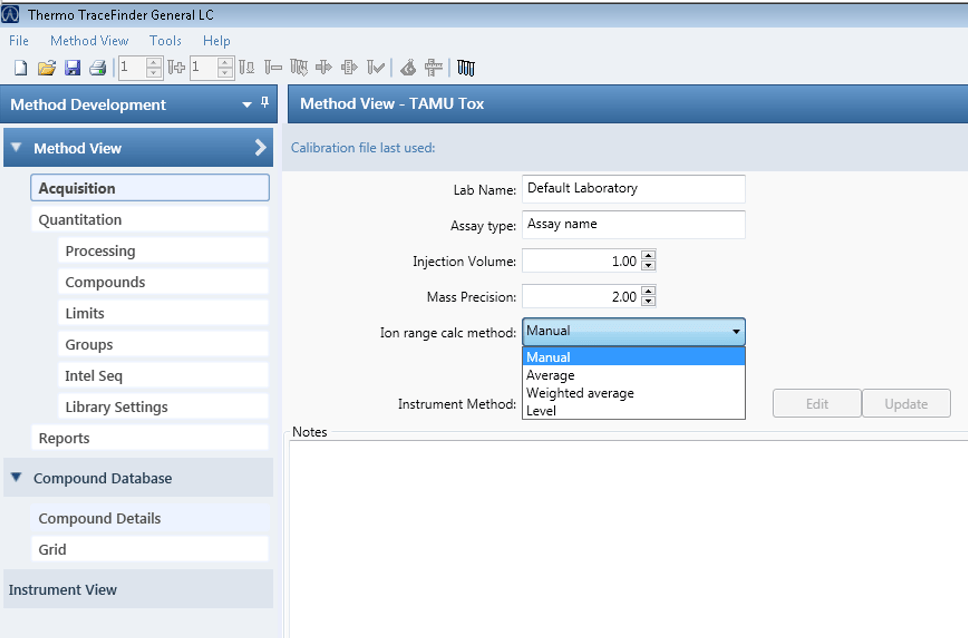
1) Manual – This functions as the name implies, it allows the user to define a targeted ratio by manually entering it in the ratios section of the detection tab of the confirming ions of a compound.
2) Average – This functions allows the data to drive the targeted ratio of each confirming peak by averaging the detected peaks for each confirming ion in each component from the calibration curve and applying the average as the target ratio. This is useful in many clinical experiments where response may be variable across sample sets.
3) Weighted Average – Performs the same function as Average with the exception that it weights the bottom end of the curve in the calculation of the target amount. This is useful in assays where the expected amounts in the unknown sample types are typically on the lower end of the calibration range.
4) Level – This selection allows the user to select a level from the calibration curve as the target ratio reference. In some labs the SOP’s require that a specific calibration point be compared for the batch of samples.
The selection of 2-4 are widely used in the applied markets. This relieves the use of having to perform the calculations manually outside of the application and then hand entering the data.
Also to note is that if you are working in a batch of samples such as a verification samples set. You may use settings 2-4 to calculate the values then changes the setting to manual. This action keeps the calculated value in the target field. you can then update the Master Method template and use these ratios for all validated batches to follow.
TraceFinder 3.3 has the benefit of being able to store the ion ratio criteria in the Compound Database so that you may perform quick holistic edits or use the same criteria in different assays without recalculating the values and manually entering them. As with the methods themselves, each ratio has properties that can be set as:
- Window Type – How to calculate the width of the range around the target ratio
- Ratio Window – The amount of the range
- Coelution Value – The amount in time that the peak apex of the confirming ion can be different from the quan peak.
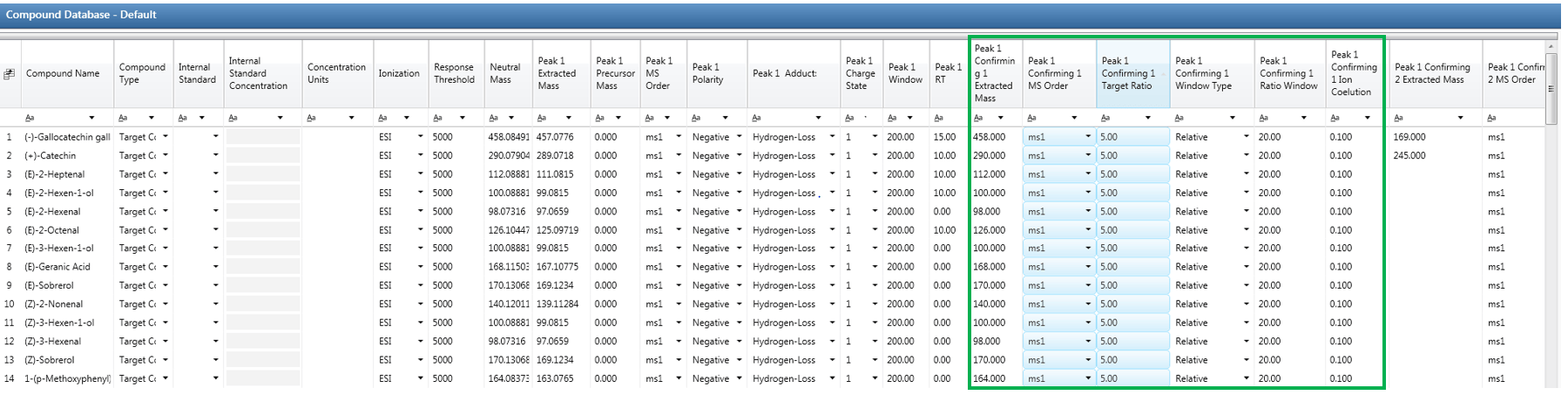
The file hyperlinked below is an example CSV file template for a compound database for TraceFinder 3.3. This file will allow you to record settings from other methods. If you are transferring from one instrument platform to another, this enables you to quickly create the same method in TraceFinder.
Click here to download the ZIP file -> Default
As a reminder TF can group in the CDB and the Method up to 6 components as individual integrated quantitative peaks under the compound name. This allows the peaks to be viewed and manually manipulated individually in data review but the responses summed as the total response of the compound. Each of the 6 quantitative peaks may have up to 10 confirming peaks with individual ratios and ranges. (A key note is that the Quantitative peaks need NOT be coeluting. (ie.. Chiral compound analysis)) This feature is mostly when using GC EI experiments or LC experiments with multiply charged components.
TraceFinder 3.3 – Targeted Quan Data Review – Simple Manual Intergation
There have been many request to ease the task of manual integration and other daily tasks in routine quantitation.
TF 3.3 utilizes the Swipe Integration and simple peak removal tools that were previously piloted in Comparative View. The data review elements have all been updated to give the review process a new look and feel. These updates allow for the data to be clearer and quicker for manual determinations.
As with Targeted Screening, TF 3.3 allows for the option to couple Unknown/Untargeted Screening with Quantitation to reveal components that were previously unknown for troubleshooting or determinations of new analytes, that need to be incorporated into future analysis. This feature is in the same previous workflows, but giving you the power to know more.
TraceFinder 3.3 – Targeted Screening Review
Targeted Screening has been a part of TF for several years now. However, in TraceFinder 3.3 the workflow has been coupled with Unknown/Untargeted Screening to allow the user quickly review chemical compounds that are thought to be present and to now include the ability to review components that are truly unknown. This allows the chemist to perform the same daily operations but know more than previously possible, in one simple workflow.
Tracefindr 3.3 – Create A Batch From a Template
TraceFinder 3.3 allows you to create templates to easily perform redundant tasks of everyday lab life.
By creating a batch template a user simply selects the template, enters the unique sample information for unknown sample types and submit the samples. The templates can be made to perform Targeted, Unknown or a Combination of analysis, dependent on the users requirements.
See a video below of this simple process that’s been around in TraceFinder for several years but now includes Untargeted Analysis when the option is available.
NEW – TraceFinder 3.3 including integrated Unknown Screening option
At ASMS 2015 TraceFinder 3.3 will be released. Though there have been many small improvements to the general Targeted Analyte workflows, there is now an option to perform unknown analysis as a stand alone or in combination with targeted analysis. When coupled with targeted analysis the Known Analytes are automatically removed from the found chromatographic peaks in the Untargeted list.
Quick points:
Identification of found chromatographic peaks include the options for use of:
- Compound Databases used in targeted analysis
- Library Searches (Both NIST 2014 HRAM and Library Manager 2.0)
- Elemental Composition
- Chemspider Searches
Below is a quick video of the major data review screens that can be utilized in examining your data.
TF 3.2 Setting up to Data Review to display Positive results first
In the video below, we have set up the flagging criteria to be able to sort and float Positive results, above the LOR/Cutoff Limit set in the method settings,to the top of the data review grid. We have also setup a flag to allow compounds with detected peaks but fall under the LOR/Cuttoff level in the QAQC section of the master/local method, to appear below the positive results. This should assist in labs wanting to review data by exception and to validate their data review process to incorporate into their SOPs to utilize this criteria.
